
User Guide
Jump to: Getting started · Home · Bulletin · Events · To-Do · Chat · Album · Notes · Polls
Account and plans: Premium plans (subscribe, restore, cancel) · Safety and privacy · Deleting your account
Getting started
- Sign up with your email address, or with Apple or Google.
- Create a group from the side menu and give it a name and a picture. The free plan lets you be in up to 3 groups.
- Invite members: share an invite link (valid for 24 hours, 7 days or 30 days) or show a QR code (valid for 1 hour). People send a join request, and a member approves each one. Everyone in the group is told who joined and who approved them.
The services in the bottom bar can be chosen in Settings › Design; the rest are under “Others”.
Home
Home shows your group at a glance: bulletin posts at the top, then panels for Events, Chat, Updates, Album, Notes and To Do.
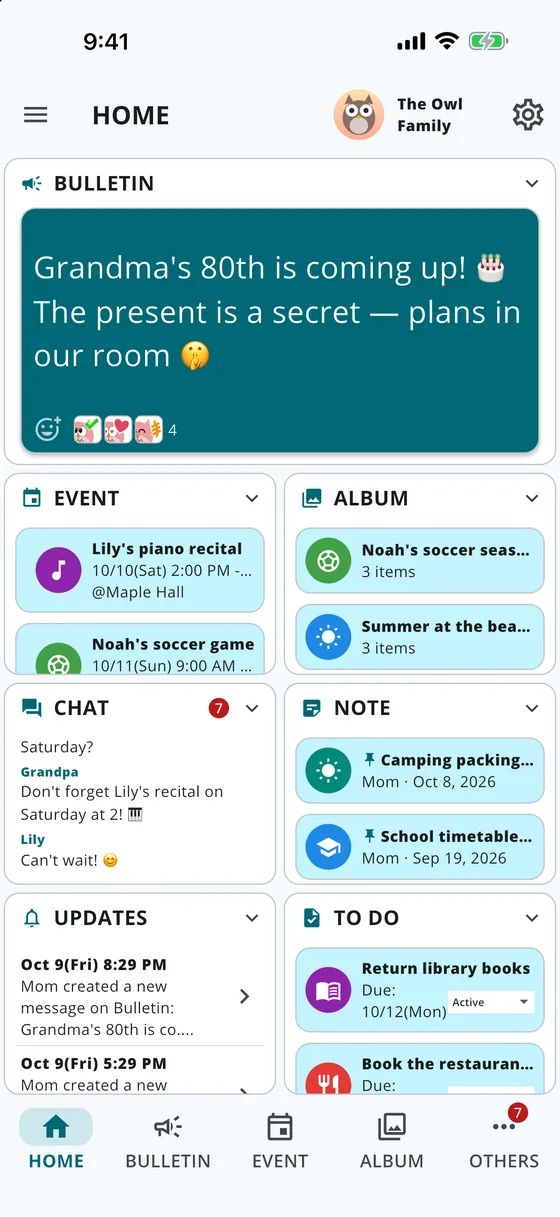
- Tap a card to open it; tap a panel's title row to fold or unfold it.
- Long-press an event, to-do, note or album card and choose “Post to Bulletin” to share it.
- With the Premium Individual Plan you can rearrange the panels in Settings › Design › Home layout.
Bulletin
The Bulletin is for news everyone should see. It sits at the top of Home, so every member sees it when they open the app; swipe left or right when there are several posts, and react to a post right there.
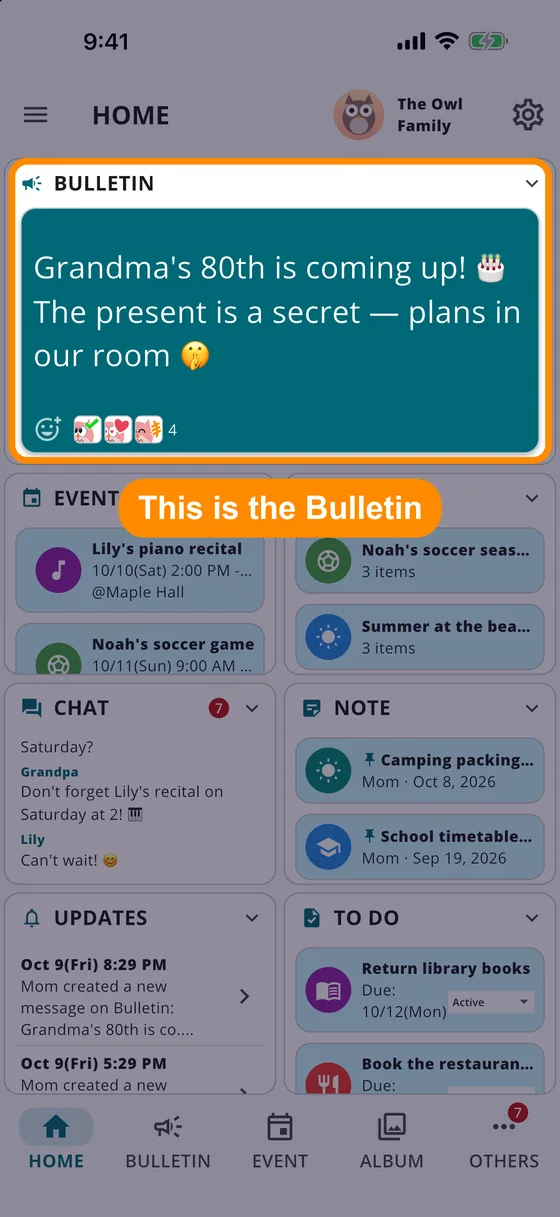
To create, arrange or delete posts, open “Bulletin” in the bottom bar.
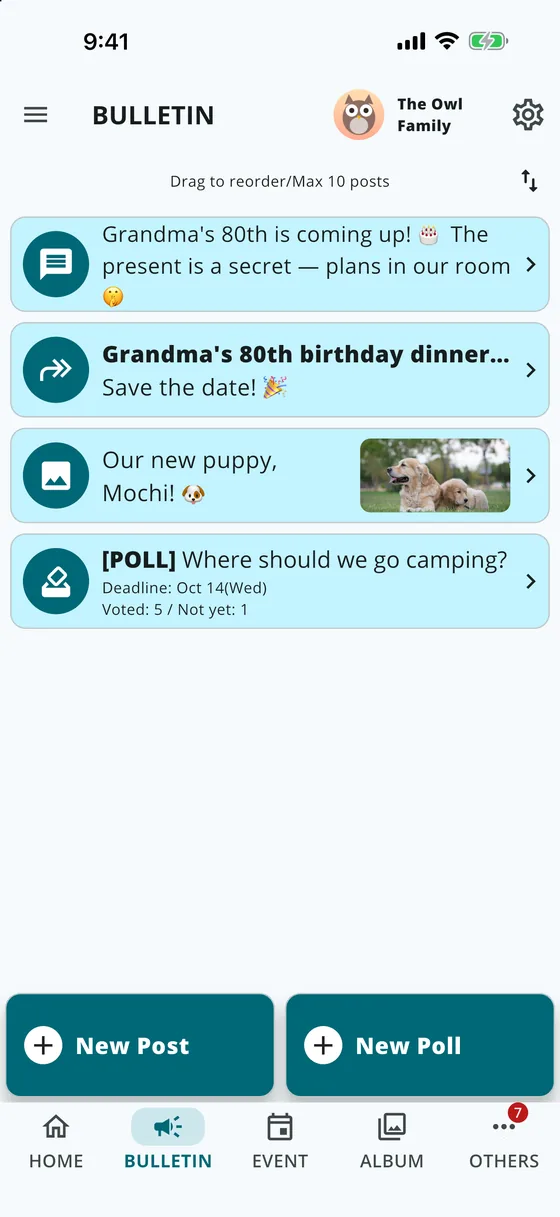
- Tap “New Post” and choose Message, File (photos, PDF, Word or Excel, up to 10 MB each), Photo, or Card (an event, to-do, note or album members can open).
- Choose how long it stays (“Display Duration”: 1 day, 1 week, 1 month or until you delete it), then tap “Create”. Members are notified.
When a post's time is up, it is removed together with its photos and files. The board holds up to 10 posts; sort them by custom order, last update or icon.
Events
Share the group's plans on a calendar and take attendance.
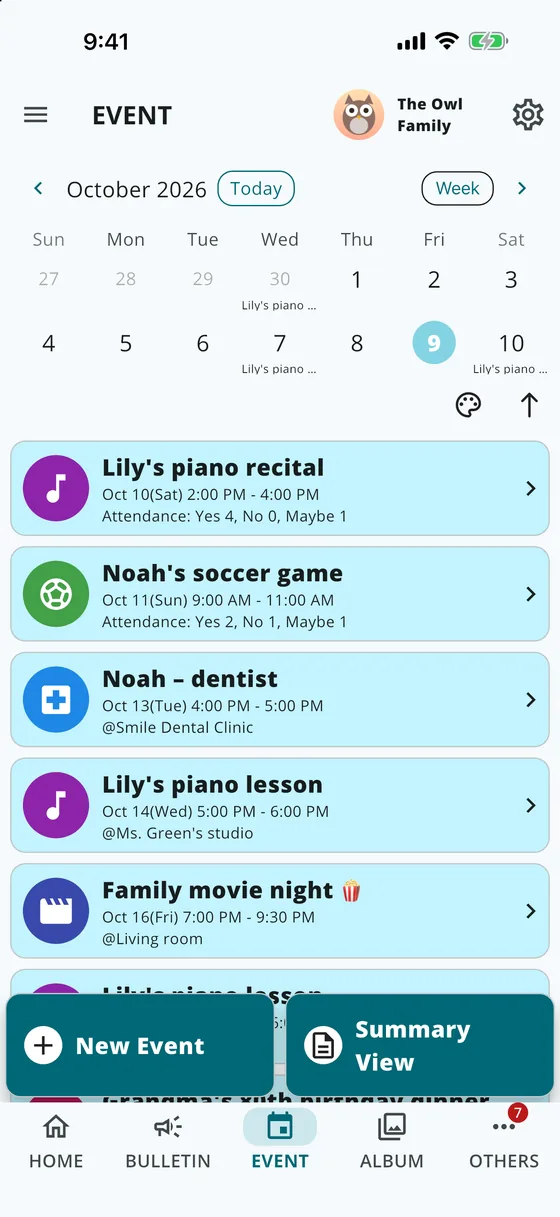
- Tap “New Event” and enter the title, date and time (or all-day), location, description, icon and color.
- Turn on “Take Attendance” to ask members for Yes, No or Maybe, then tap “Create”.
- Switch the calendar between Month, 2 weeks and Week; filter by color and sort by start date, icon or color.
- Repeating events (weekly, every 2 weeks, monthly, yearly) are part of the Premium Individual Plan.
- After saving an event, give it its own album for the day's photos and videos.
- To see the group's events in your own calendar, open Settings › Groups, choose the group and connect Google Calendar Sync or Apple Calendar Sync (iPhone and iPad). Sync goes one way, from Minerva MEET to your calendar.
To-Do
Share tasks with owners and due dates, and see what is left.
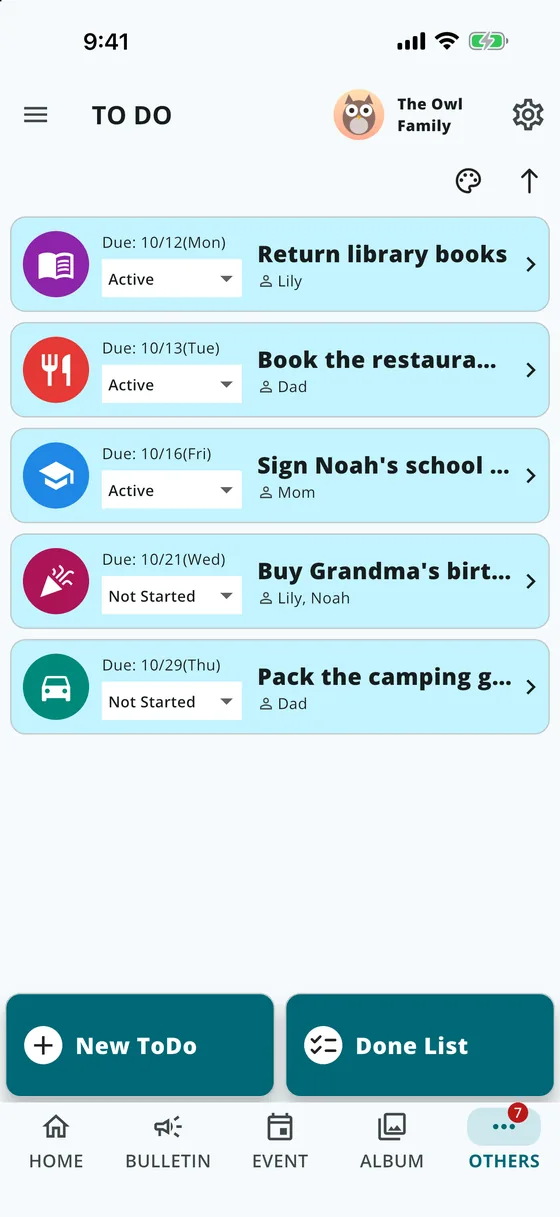
- Tap “New ToDo” and enter the title, due date, owners (one or more), description, icon and color, then tap “Create”.
- Change a task's status from its card: Not Started, Active, On Hold, Done or Cancelled. Done and cancelled tasks move to the “Done List”, where you can delete them together.
Chat
Talk with the whole group in the “Everyone” chat. Long-press a message to react, or to delete one of your own.
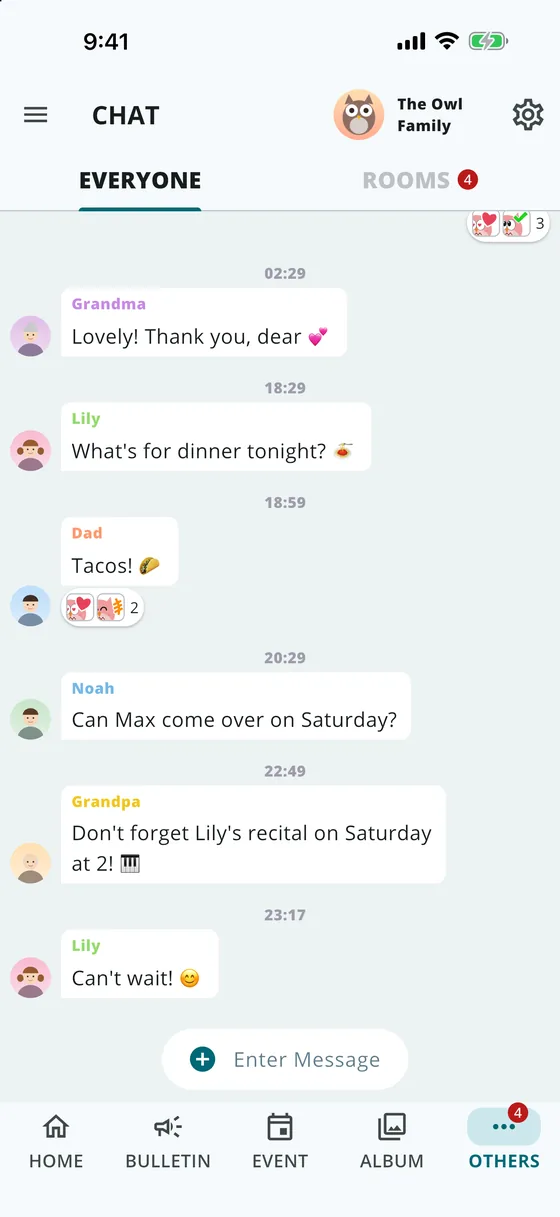
With the group's Premium Team Plan, members can also create rooms for just some of the members (“New Room”, up to 20 per group) and attach photos and files (up to 10 MB each) with the + button. Room notifications can be turned off per room or in Settings › User › Notifications. If the Team Plan ends, rooms become read-only; nothing is deleted.
Album
Share photos and videos with the group: tap “Photos & Videos” (up to 200 at a time; uploads keep going after you close the app), or make albums with “New Album”. Watch videos in slow motion (0.25×, 0.5×, 2×) or frame by frame, zoom with a pinch, and discuss in comments; type “@” to mention a member.
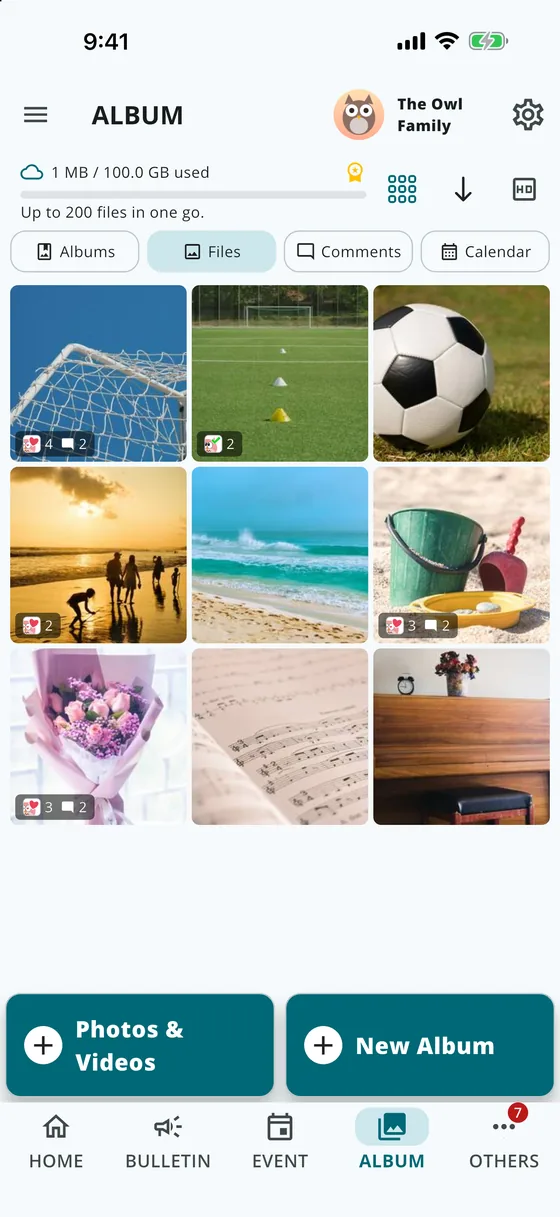
Photos lose their location and other embedded data on your device before upload. Each group has 5 GB on the free plan (videos up to 60 seconds, 720p) and 100 GB with the Premium Team Plan (videos up to 10 minutes, 1080p). Going over the limit never deletes anything; it only pauses new uploads.
Notes
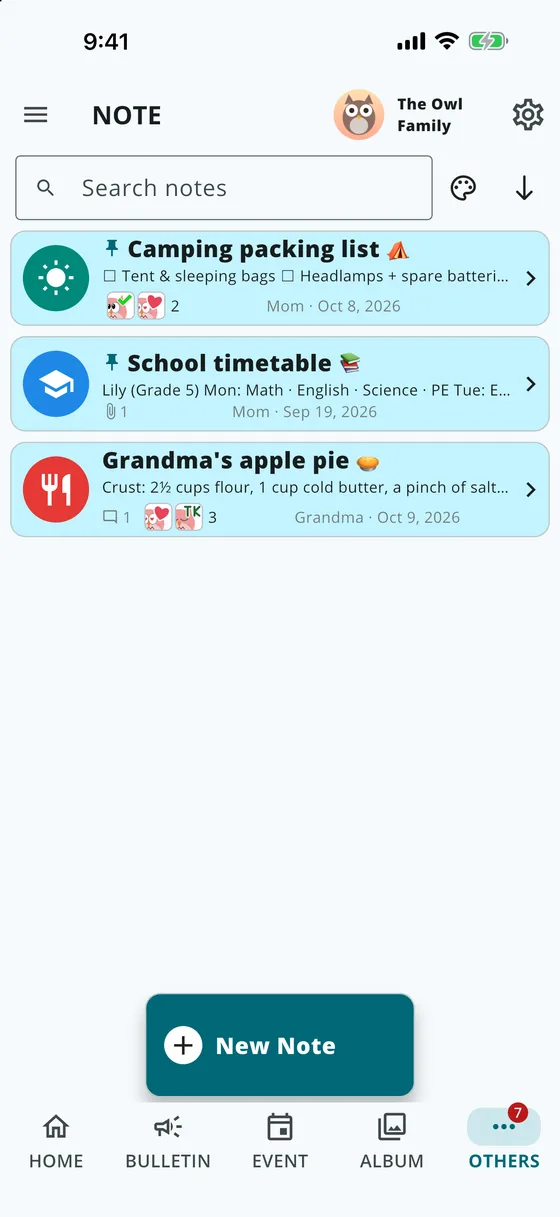
Keep lists, notes, photos and files the group uses again and again. Tap “New Note”; the first line is the title. Attach up to 10 files or links, and pin the notes you use most.
Polls and date polls
On the Bulletin, tap “New Poll” to vote on dates, dates and times, or your own choices. Turn on “Share via link” to let people without the app answer too. The web date poll and web poll work without the app or an account.
Contact
If this guide and the FAQ do not answer your question, reach us through this contact form.